Connect Your Identity to Shinkai Desktop
After following the previous documentation on registering your identity on-chain, you should have your identity keys downloaded on your machine.
Now we will move forward with connecting this identity, using the keys, to your Shinkai node (Shinkai Desktop).
Requirements
Before moving forward make sure you have Shinkai Desktop installed. If you don't, please reference the Installation and Setup Guide page for instructions.
Also, make sure you've registered an identity on-chain following the Registering Your Shinkai Identity documentation.
You must follow the instructions and register an identity by clicking the link in Shinkai Desktop, not by registering an identity through the dApp directly (otherwise the correct keys from Shinkai Desktop will not be used when registering your identity).
How to Connect Your Identity to Shinkai Desktop
- 1Copy the Keys in your Desktop App
Open your Shinkai Desktop App > Go to
Settings>Public Keys.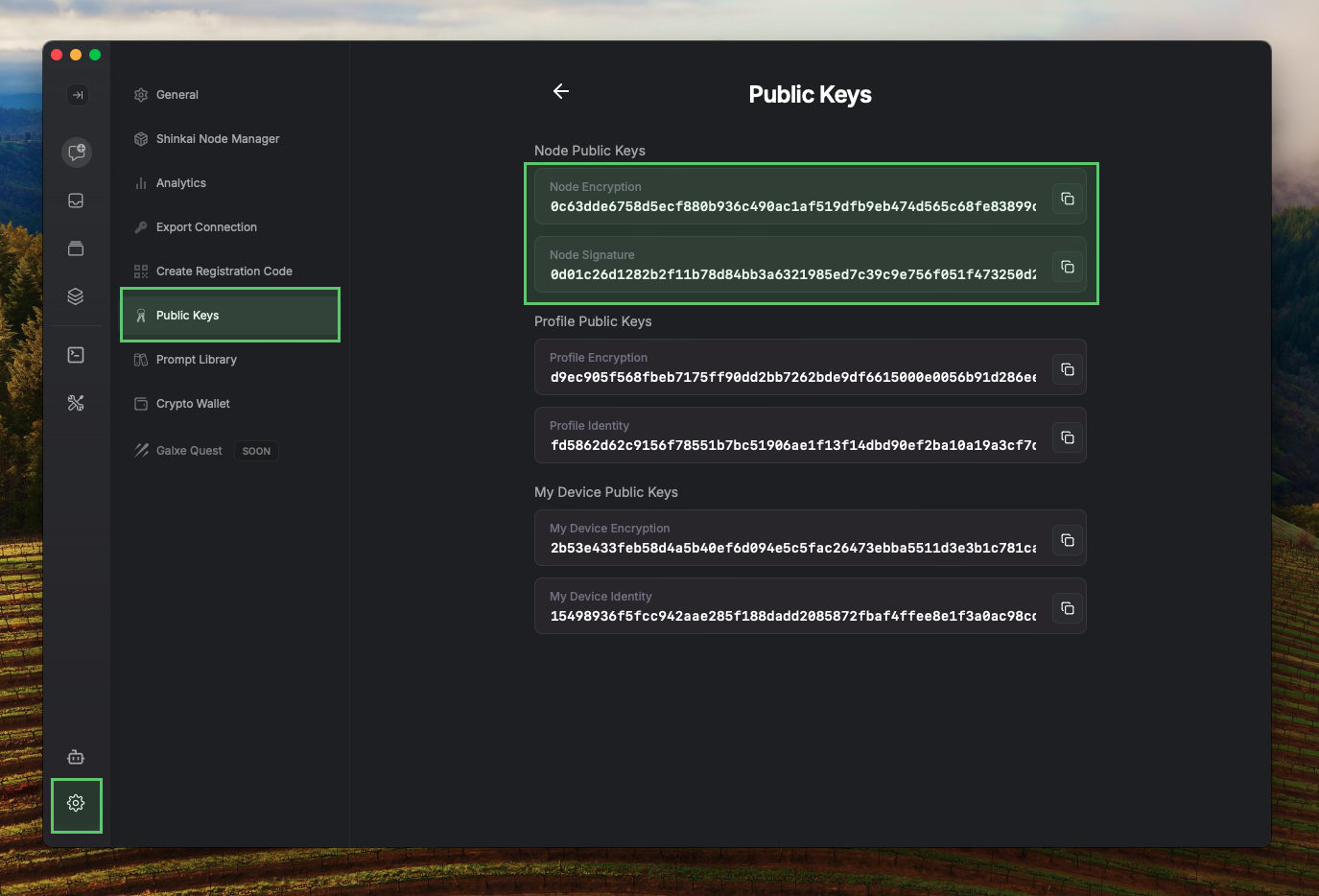 Copy your
 Node Public Keys. - 2Paste the Keys in Your Shinkai Profile
Go to your profile > Click your
identitybutton.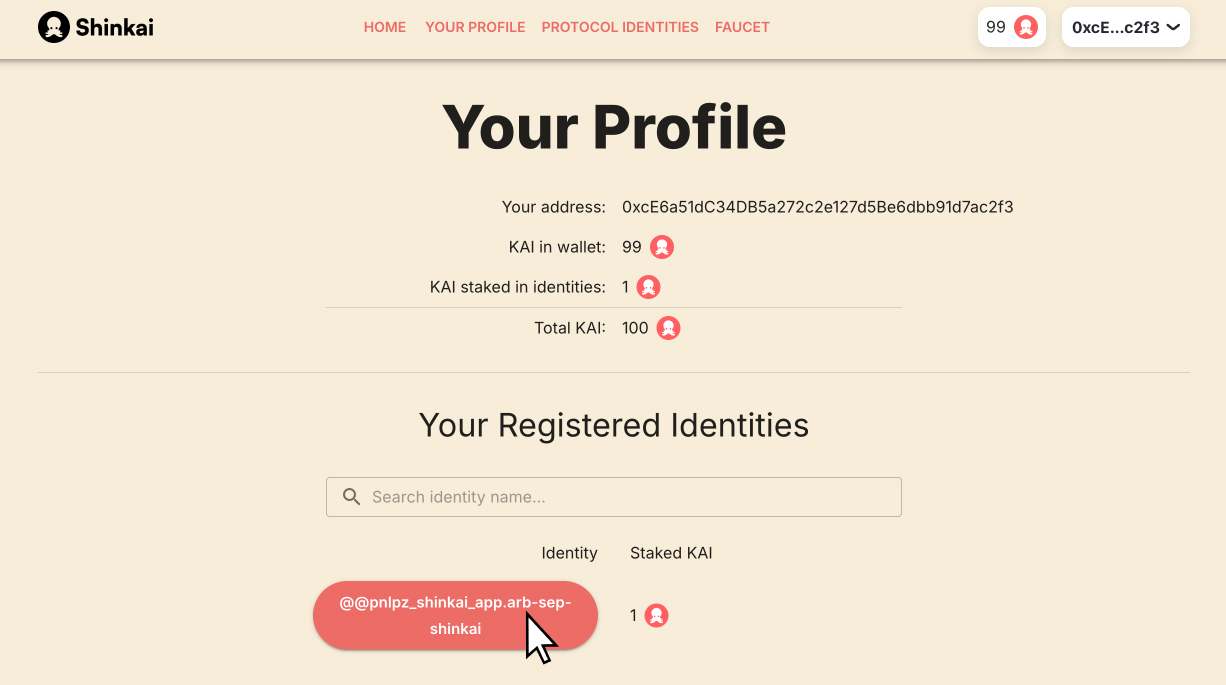
Click the
editbutton > Paste yourNode Public Keysas follows:- Node Encryption Key > Encryption Public Key
- Node Signature > Signature Public Key
- Node address: Enable the
Use Proxyoption and addrelayer_pub_01.
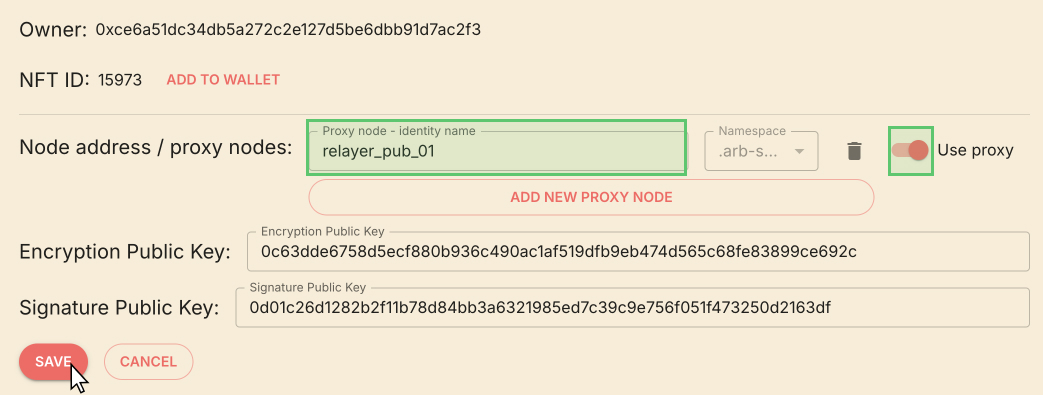
Savethe changes. - 3Restart your Shinkai Desktop App
Restart Shinkai desktop so your identity is refreshed.
- 4Copy the name of your registered Shinkai Identity
- Open Shinkai Desktop and click on the Settings tab at the bottom left corner of the application.
- Click on the Shinkai Identity input box, input your identity name, and click save. Make sure to include the
@@prefix so your identity looks like@@myidentity.sep-shinkai. - Once you click
save, you will have your identity connected to Shinkai Desktop!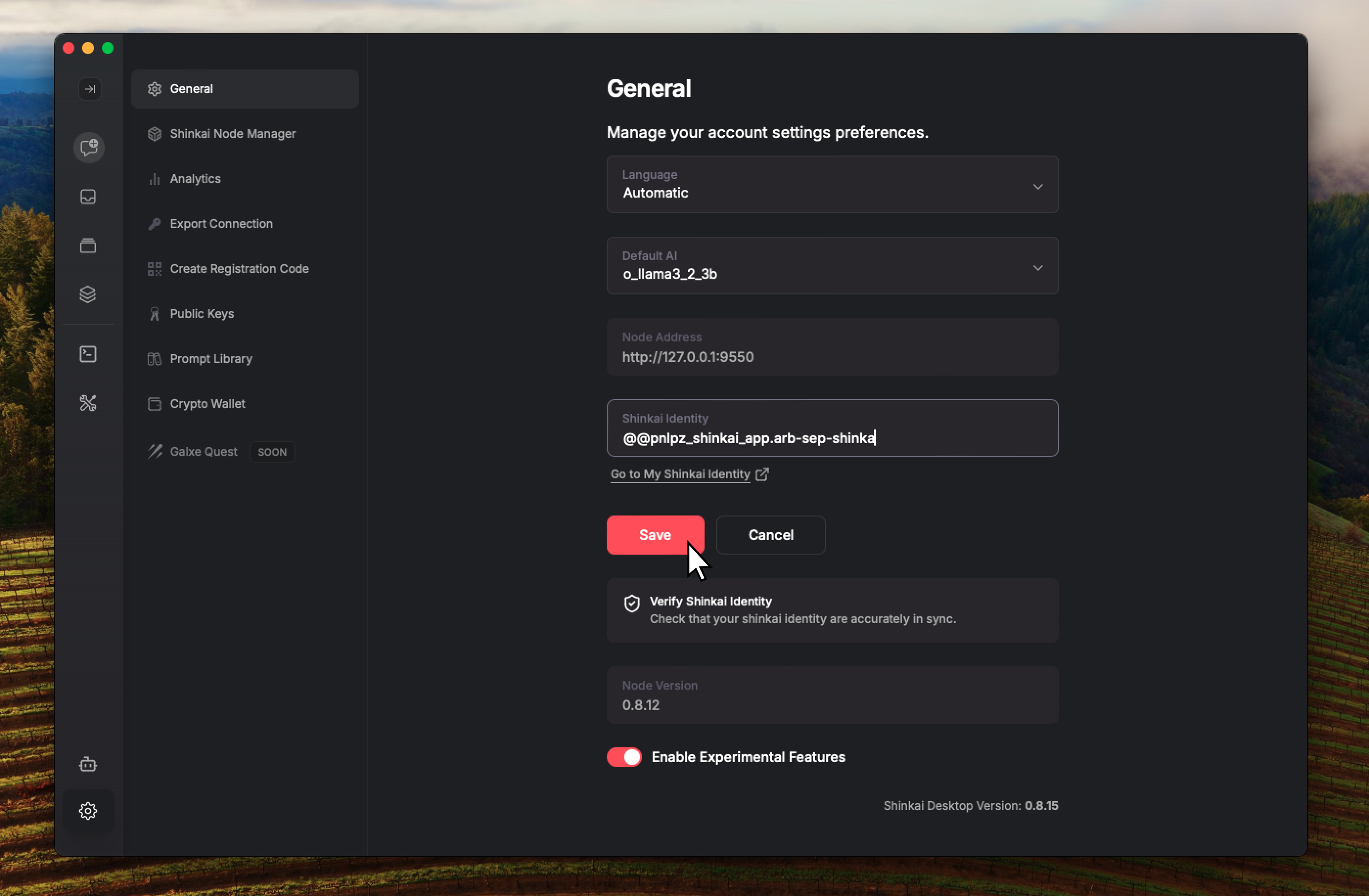
Congratulations, you have your identity connected to Shinkai Desktop! Now you can take part in the Shinkai Network and use p2p capabilities.
Verifying your Identity
Once you have connected your identity, you can verify the connection by clicking the Verify Shinkai Identitybutton below your Shikai Identity (Settings > General).
You will be redirected to your profile page, and if everything is OK, you will see a green success message:
Your encryption and signature public keys are correctly in sync.