OpenRouter
OpenRouter AI models offer a unified platform to access various advanced AI models from multiple providers. It simplifies integration, allowing developers to efficiently choose and deploy models for tasks like text generation and natural language processing, making it ideal for building versatile AI-powered applications.
You need to log in into OpenRouter to generate your API keys. Most models are paid, but you can find some free options.
- 1Generate your API key
- Log in to OpenRouter > Hover your profile menu at the upper-right corner > Select
Keys. - Click the
Create Keybutton. - Give your key a name (e.g., Shinkai) > Click
Create.
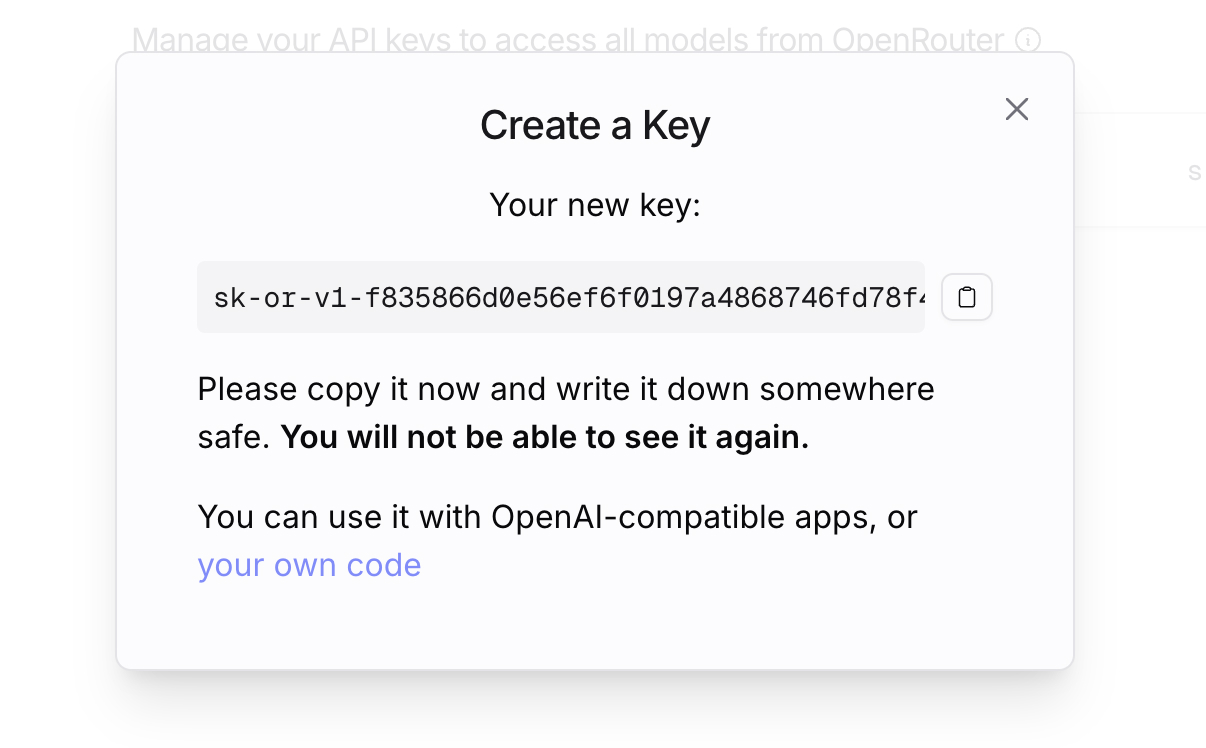
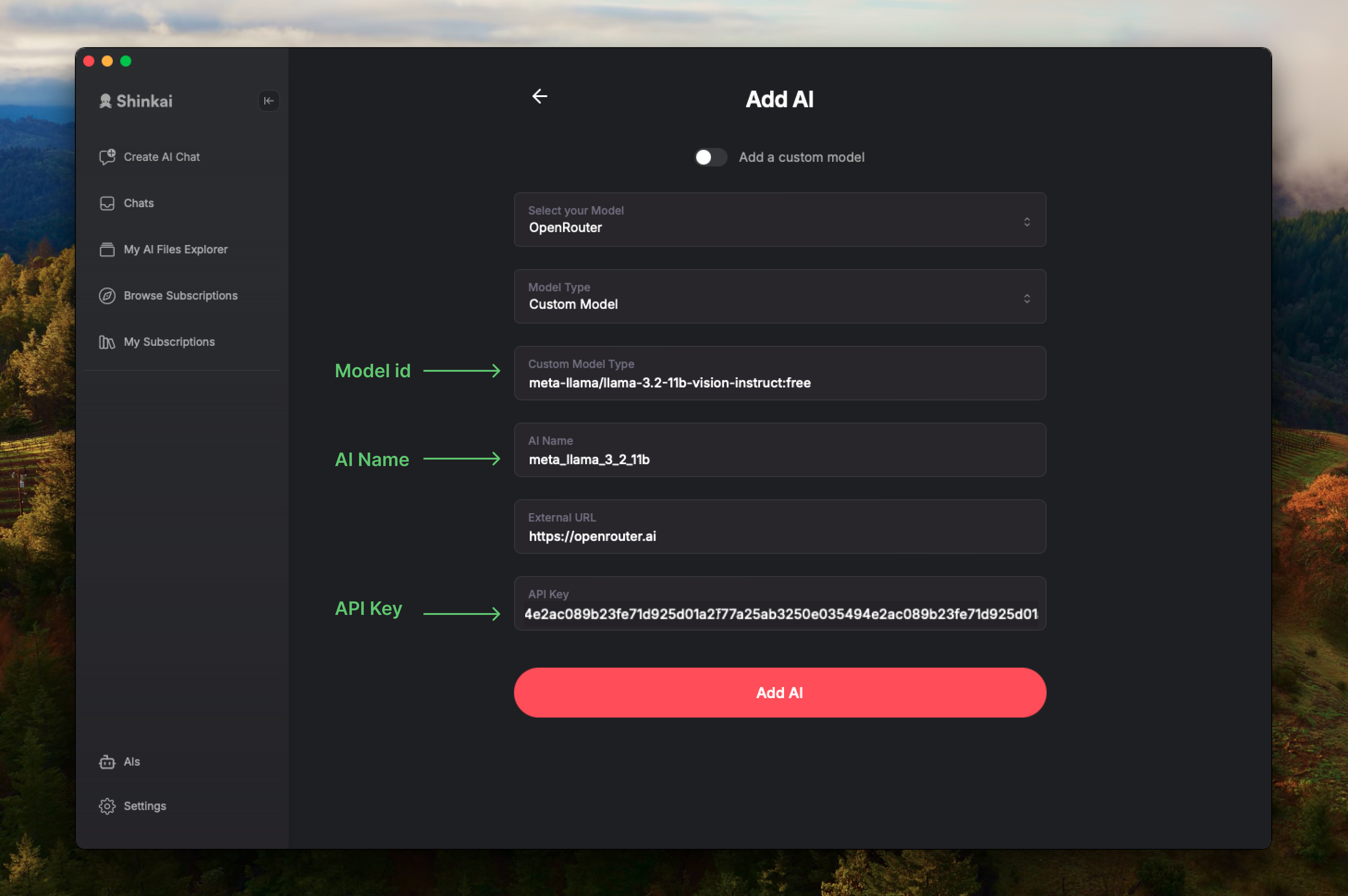
Copy the key and go to your Shinkai app > Paste the key.
- Log in to OpenRouter > Hover your profile menu at the upper-right corner > Select
- 2Select the model to install
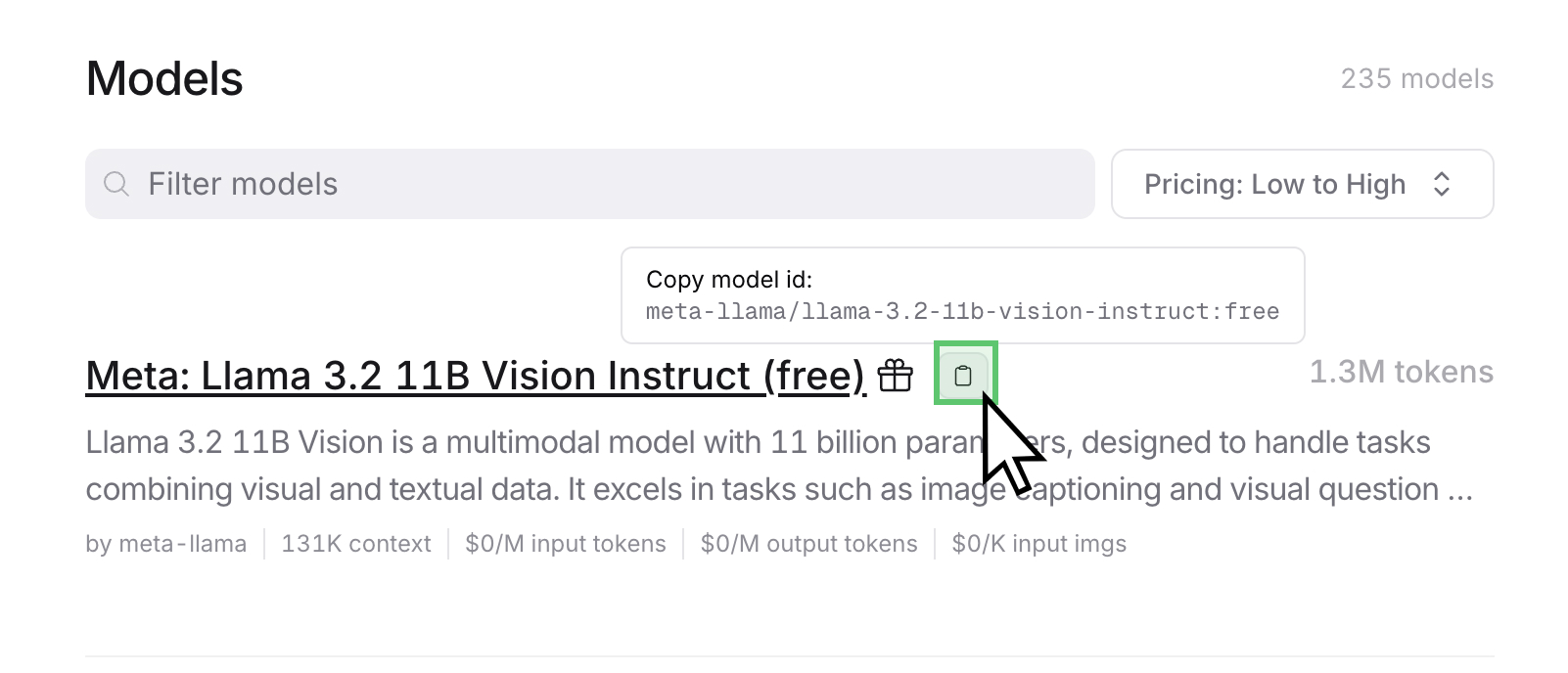
OpenRouter offers over 200 AI models to choose from. We are going to choose the free model:
Meta: Llama 3.2 11B.Copy the model id (see image)
- 3Complete the manual installation in your Shinkai app
Paste the
model idin theCustom Model Typefield.In
AI Namefield you can customize how you want to see this AI displayed in your Chats.ClickThis field only accepts alphanumeric characters and underscores.Add AI. You are all set!